




Understanding NuGet Dependencies with dotnet nuget why
Anyone who has worked on a .NET project for long enough has hit this moment: a security scan or build warning flags a package you've never heard of,
and it isn't listed anywhere in your csproj. So where did it come from? That's exactly the question dotnet nuget why is designed to answer.
In this article I'll cover how to list every package a project uses, including the ones pulled in indirectly, and then how to trace exactly why a specific package is present using the dependency graph.
Listing every package, direct and transitive
Before investigating a single package, it helps to see the full picture. A transitive dependency (sometimes called an indirect dependency) is a
package your project depends on because another package depends on it. For example, installing Microsoft.EntityFrameworkCore automatically
brings in libraries such as Microsoft.Extensions.Logging and System.Text.Json without you referencing them directly.
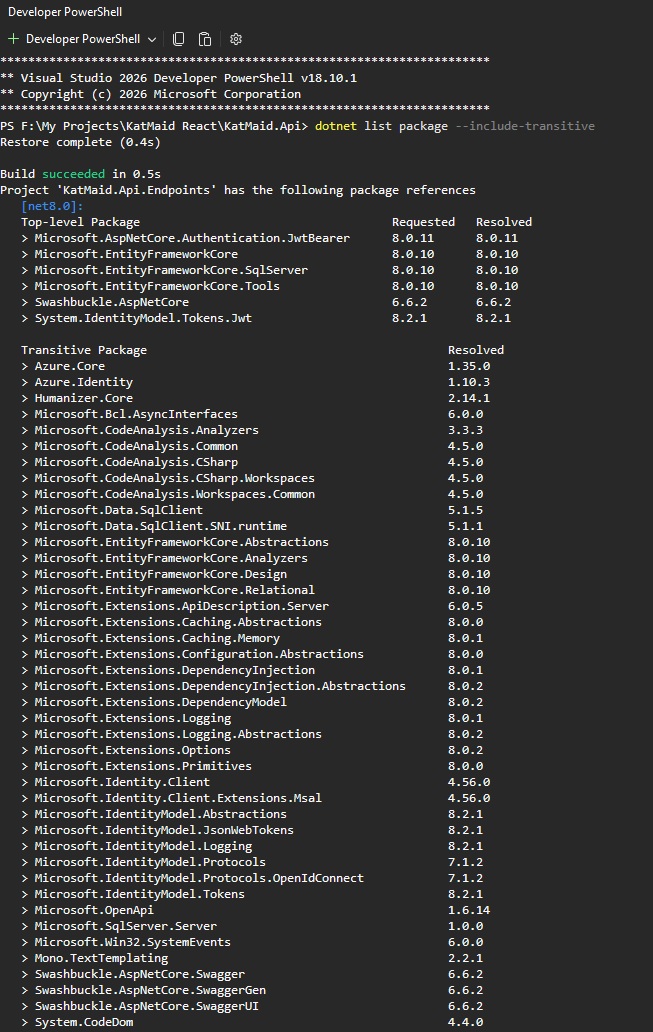
To list everything, including these transitive packages, use:
dotnet list package --include-transitiveOn the newer .NET 10 SDK, the noun-first form of the command was introduced, so the same result is achieved with:
dotnet package list --include-transitive
The output splits packages into two groups: top-level packages, which are the ones explicitly referenced via PackageReference
in your project file, and transitive packages, which are pulled in indirectly by those top-level references.
Tracing why a package is present
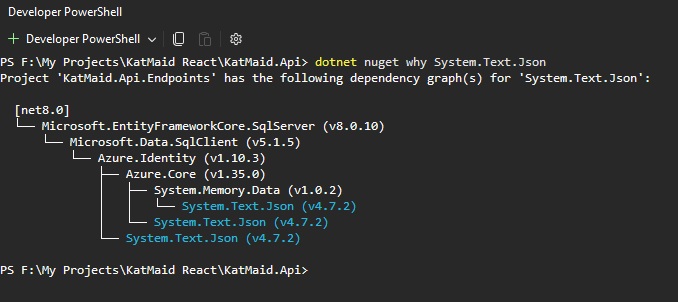
Listing packages tells you what is there, but not why. That's where dotnet nuget why comes in. It shows the dependency
chain that caused a named package to be included, which is invaluable when the package doesn't appear in your project file at all.
Imagine a project with this dependency chain:

The project never references Newtonsoft.Json directly, but it ends up in the build because PackageA depends on
PackageB, which in turn depends on Newtonsoft.Json. To see that chain, run:
dotnet nuget why Newtonsoft.JsonThe command examines the project or solution in the current directory and prints every route by which the named package enters the dependency graph.
A package name is always required
Unlike listing packages, dotnet nuget why investigates one named package at a time, so the package argument is mandatory. The full syntax is:
dotnet nuget why [<PROJECT|SOLUTION>] <PACKAGE>This works fine:
dotnet nuget why Newtonsoft.JsonBut this does not, since there's no package to investigate:
dotnet nuget whyYou can also target a specific project or solution rather than relying on the current directory:
dotnet nuget why MyProject.csproj Newtonsoft.Json

dotnet nuget why MySolution.sln Newtonsoft.Json
And if a project targets multiple frameworks, narrow the result with --framework, which can also be repeated to inspect more than one target:
dotnet nuget why Newtonsoft.Json --framework net8.0SDK version, not target framework, decides availability
It's worth being clear that command availability comes down to the installed .NET SDK, not the target framework of the project. A project can quite happily target an older framework while a newer installed SDK runs the command against it, provided the project restores correctly.
| Purpose | SDK requirement | Command |
|---|---|---|
| List packages, including transitive dependencies | .NET 6 to .NET 9 SDK | dotnet list package --include-transitive |
| List packages, including transitive dependencies | .NET 10 SDK and later | dotnet package list --include-transitive |
| Explain why a named package is present | .NET 8.0.4xx SDK and later | dotnet nuget why PackageName |
A practical investigation workflow
In practice, I use these two commands together. Start by listing everything:
# .NET 10 SDK and later
dotnet package list --include-transitive

# .NET 6 to .NET 9 SDK
dotnet list package --include-transitive
When something unexpected or vulnerable turns up, drill into it by name:
dotnet nuget why PackageNameFor example, if a build reports something like:
NU1903: Package XYZ has a known high severity vulnerability
and XYZ isn't in your project file, it's almost certainly transitive. Running dotnet nuget why XYZ reveals the top-level
package that eventually pulls it in, telling you which direct dependency needs upgrading, replacing or reconfiguring. Adding a direct reference to
override the transitive version can work as a stopgap, but upgrading the top-level dependency is generally the cleaner fix.
Working with older .NET Framework and non-SDK-style projects
Legacy projects don't always restore cleanly with the modern SDK tooling. From the .NET 9 SDK onwards, dotnet nuget why can instead examine
the project.assets.json file produced during restore.
- Restore the project in Visual Studio or with
msbuild.exe. - Locate
project.assets.json, usually under the project'sobjdirectory. - Pass the assets file straight into the command:
dotnet nuget why path\to\project.assets.json SomePackageIf you're not sure where the assets file lives, MSBuild can tell you:
msbuild.exe path\to\project.csproj -getProperty:ProjectAssetsFile
Note that projects still using the older packages.config approach may not produce a usable project.assets.json at all. In
those cases you're better off examining packages.config directly, checking project references and installed package metadata, or
migrating to PackageReference where practical.
Other useful related commands
# List direct packages only
dotnet package list

# Include transitive packages
dotnet package list --include-transitive

# Show outdated packages
dotnet package list --outdated

# Show vulnerable packages
dotnet package list --vulnerable

# Produce JSON output
dotnet package list --format json

# Explain one package
dotnet nuget why PackageName
In short: package listing tells you what is present in your build, and dotnet nuget why tells you why. Used together
they take a lot of the guesswork out of chasing down unexpected or vulnerable dependencies.
Some real screenshots are shown below